How do I manage Banktivity ledgers?
A Banktivity ledger is a data file that contains all of the financial information that you use when working with Banktivity. This file is distinct from the Banktivity application. It typically includes accounts and their transactions, categories, memorized payees, scheduled transactions, import settings, sync settings, reports and budgets.
Create a new ledger
Choose File > New Ledger... to open the new ledger assistant, then follow the prompts. For more information, see Creating a New Ledger.
Open an existing ledger
Choose File > Open Organizer and select a valid Banktivity ledger. When you launch Banktivity, it will automatically show any ledgers that were open when Banktivity was quit.
Use multiple ledgers
You can have multiple Banktivity ledgers open at one time, but most information cannot be transferred between them (unless you use Cloud Sync). Transactions can be moved from one ledger to another using copy and paste. You may want to create a separate ledger for accounts you don't use anymore, or you may want to keep separate ledgers for you and your spouse. In most cases, however, only one Banktivity ledger is necessary for tracking your personal finances.
Save changes to a ledger
Banktivity automatically saves the ledger at regular intervals and when you close it.
Save a copy of a ledger
First, you will need to open the Organizer File > Open Organizer. You will then need to highlight the ledger you would like to duplicate from the organizer window, then choose File > Duplicate. The new ledger will be appear in the Organizer with the same name as the original but will have copy added to the end of the name. The original ledger will be left how it was.
Delete a ledger
First, you will need to open the Organizer File > Open Organizer. Next, highlight the ledger you would like to delete. Then you can press the delete key on your keyboard. You will be asked if you are sure you want to permanently delete that ledger from the Organizer.
Rename a ledger
First, you will need to open the Organizer File > Open Organizer. You will then need to highlight the ledger you would like to rename, then choose File > Rename... Type in the new name and then press "OK".
Managing Ledgers on iPad and iPhone
Managing ledgers on iOS is quite different from the MacOS version of Banktivity. We covered how to set up your original account in the Installation Help File. Though you may want to create a new ledger or manage your existing ledger, like renaming it.
Getting to the Organizer
In order to get to your Organizer on iOS you will need to click on the file cabinet icon on the top left of the summary screen for your open ledger, the icon looks like this: 
After clicking on that icon you will be presented with your organizer:
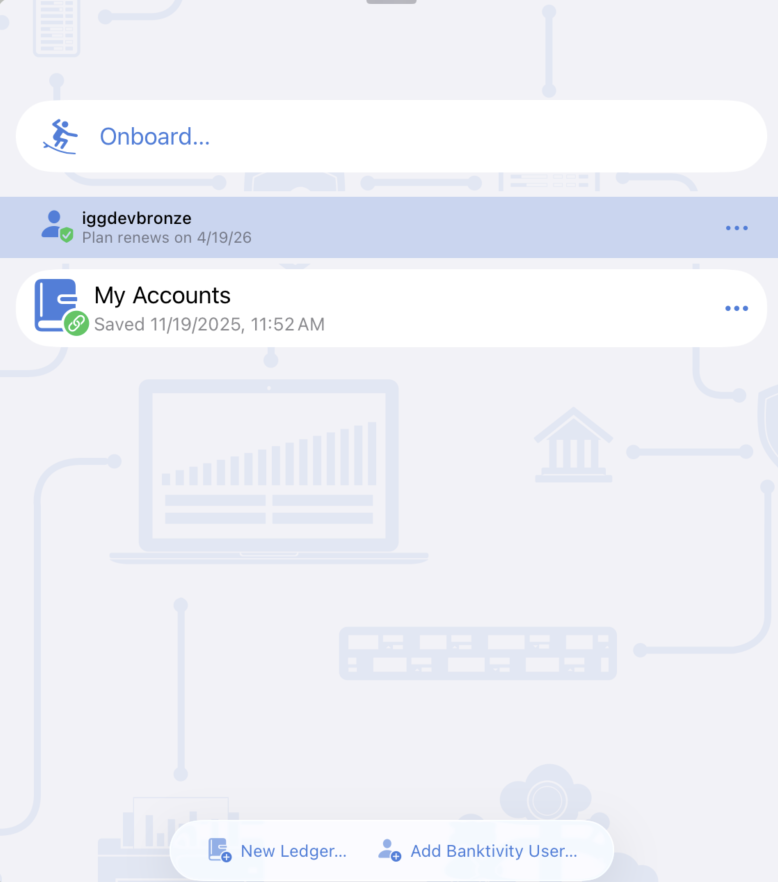
Ledger options
Press your finger down on the three dots to the right of one of your ledgers to open the ledger options:
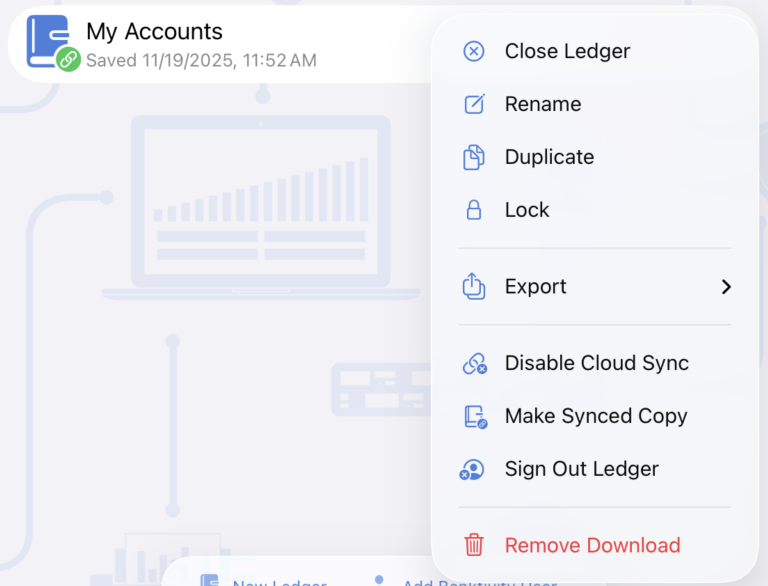
Editing or deleting a ledger from your iOS device
From this pop-up you can select from many different ledger-specific options:
- Close Ledger: Closes the active ledger.
- Rename: Opens a window allowing you to choose a new name for the ledger.
- Duplicate: Creates a local copy of the selected ledger. Cloud Sync is turned off in this duplicate.
- Lock: Lock the ledger, requiring you to authenticate using your iOS device's passcode or biometrics.
- Export: Offers the option to export an archived copy of your ledger, with or without a password.
- Disable Cloud Sync: Turn off Cloud Sync for the ledger turning it into a local-only ledger.
- Make Synced Copy: Copy the selected ledger and maintain the Cloud Sync settings.
- Sign Out Ledger: This option will log out of your Banktivity user account for the selected ledger. The ledger becomes read-only and will no longer sync with the cloud until you sign back in to your Banktivity User Account.
Adding another ledger to the iOS device
If you would like to add a new ledger, simply press on "New Ledger" from the Organizer and you will be able to go through the New Ledger Assistant