How do I sync with my iOS devices?
In addition to the powerful software we offer for use on Mac OS, we also offer Banktivity on iOS with many features that are offered on Mac but with a user interface that is designed to be easily useable on iPhone and iPad devices.
Banktivity for iOS is a full-featured financial manager. Available only at the iTunes App Store, this app handles all account types and includes investment tools, a budget planner and basic reports — all wrapped up in a stylish interface. Use it as a stand-alone app or sync with Banktivity on other devices.
Banktivity Cloud Sync
Banktivity Cloud Sync keeps your ledgers in sync between all of your Macs and mobile devices, seamlessly. Cloud Sync is included in all tiers of our subscription service! This means that if you have an active subscription you can use the software across multiple devices. For information about our policies regarding security and privacy, see Security & Privacy.
Cloud Sync makes it possible to keep any number of Macs and mobile devices in sync without them having to talk to one other - they only have to communicate with the cloud. This allows workflows such as Mac to Mac syncing, iPhone to iPad syncing without a Mac, or any other combination thereof
One caveat is that syncing between different versions of Banktivity is not supported. If you are using Banktivity 8 on one device and Banktivity 9 on another device, you should not be using Cloud Sync. Syncing across different major versions of Banktivity may corrupt your financial data.
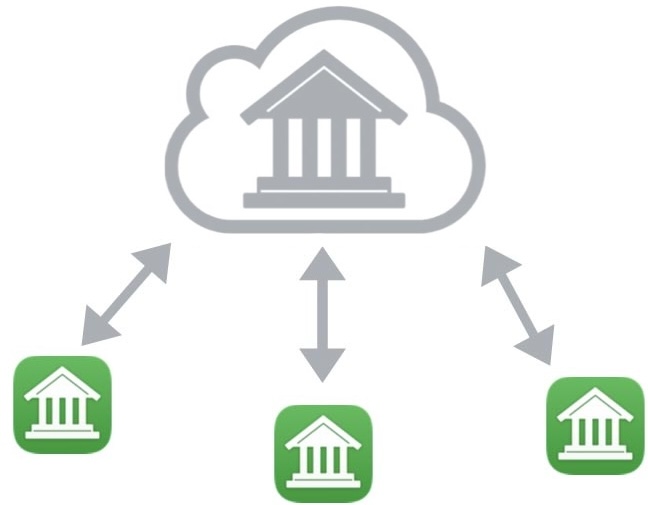
To use Cloud Sync, a Banktivity User Account is required that has an active subscription. Once you sign in with your ID, you may upload one or more ledgers to the cloud server where they can be accessed from any Mac or mobile device running Banktivity. You will give each cloud ledger a unique name so that you can choose which of your devices will sync with which ledgers. The cloud server is the ledgers' home, so any changes you make to ledgers in the cloud will sync to all of your Banktivity devices.
At this time, transaction attachments, category images, and security price histories do not sync between devices.
Add ledgers to the cloud
To get started with Banktivity Cloud Sync, first send your Banktivity for Mac ledgers to the cloud.
Setting up Cloud Sync on Mac
- Launch Banktivity on your Mac and open a ledger you want to use with Cloud Sync or highlight the ledger from within the Organizer. Choose Ledger > Enable Cloud Sync... to begin the setup process.
- Choose a password to encrypt the cloud ledger. You must not forget the password – it is required to set up other devices to sync with this cloud ledger.
Setting up Cloud Sync on iOS
- Launch Banktivity on your iOS device and open a ledger you want to use with Cloud Sync.
- Tap the settings icon on the top right of the summary page.
- Choose Sync Settings
- Choose a password to encrypt the cloud ledger. You must not forget the password – it is required to set up other devices to sync with this cloud ledger.
At this point the assistant will show a progress bar until all of your data has been uploaded to the Cloud Sync server. Alternatively, if you enabled cloud sync from the Organizer you will see the progress for the sync in the Organizer and not in the assistant window as that will have closed. Once it completes, you can begin setting up other devices to sync with this newly created cloud Ledger.
Open cloud ledger
Once you have uploaded one or more Banktivity ledgers to the cloud server, you can open them from as many additional Macs and mobile devices as you like.
Connecting a Mac or mobile device to Banktivity Cloud Sync requires you to create a new ledger. It is not possible to connect an existing ledger to one that has already been uploaded to the Cloud Sync server.
Banktivity for Mac
- Launch Banktivity.
- Make sure you are connected to the Internet.
- Choose Window > Organizer
- If you do not see your Banktivity Account please choose to add it now
- The list will populate with all of your cloud ledgers.
- Select the ledger you wish to pull down onto this device from the cloud.
- Enter the password required to open the ledger.
- Wait for the ledger to download.
- The ledger should open automatically when the sync completes.
Banktivity for iOS
- Launch Banktivity.
- Make sure you are connected to the Internet.
- If a ledger is already open, tap on the file cabinet icon on the top left of the app to return to the Organizer.
- If you do not see your Banktivity Account please choose to add it now
- The list will populate with all of your cloud ledgers.
- Select the ledger you wish to pull down onto this device from the cloud.
- Enter the password required to open the ledger.
- Wait for the ledger to download.
- The ledger should open automatically when the sync completes.
- Set a ledger password or choose to skip the step if you do not want to use a passcode to open the local ledger.
Syncing a ledger
Banktivity for Mac
You can initiate a sync at any time by clicking the "Update" button  on the toolbar or choosing Ledger > Bring Ledger Up to Date. Along with initiating a cloud sync, this will also update your accounts, security quotes, exchange rates, and bill pay payments. In addition, there is a setting to "Sync with other Banktivity devices" in Banktivity > Settings under the "Import" tab. When that option is checked, your ledger will sync automatically when they are opened and closed.
Banktivity for iOS
Ledgers sync automatically when they are opened and closed by default, and when you switch between Banktivity and other apps. You can initiate a sync manually by tapping the gear-shaped settings button, "Sync Settings" then "Sync now." You can also pull down on the Accounts screen to sync and update your accounts.
When switching from Banktivity for iOS to another app, Cloud Sync may be slowed or interrupted as the operating system assigns lower priority to apps running in the background.
Rename Ledger on the Cloud Sync server
Banktivity for Mac
To rename a cloud ledger, choose Window > Organizer and right-click on the ledger you wish to rename and choose Rename from the menu that appears. Type in a new name for the ledger, then click "OK." Make sure the name is unique; no two cloud ledgers may share the same name.
Banktivity for iOS
If a ledger is currently open, tap the file cabinet icon to return to the Organizer. Tap the three dots to the right of the ledger you wish rename. Type in a new name for the ledger, then click "OK." Make sure the name is unique; no two cloud ledgers may share the same name.
Change Ledger Cloud Sync Password
After a ledger has been uploaded to the Cloud Sync server, you can change the password used to access it from other Macs and mobile devices.
Banktivity for Mac
Choose Ledger > Show Cloud Sync Settings and click "Edit Password." Enter the current password along with the new password twice. Once you submit the change, other Macs and mobile devices that sync with that ledger will be unable to sync until their passwords have been updated.
Banktivity for iOS
Tap the gear-shaped settings button, "Sync Settings" then "Change password." Enter the old password along with the new password twice. Once you submit the change, Macs and other mobile devices that sync with that ledger will be unable to sync until their passwords have been updated.
Troubleshoot sync connections
Banktivity for Mac
In the event that a ledger on your Mac gets out of sync with the Cloud Sync server, a few troubleshooting options are available. Choose Ledger > Show Cloud Sync Settings, then click "Advanced options" and choose one of the following:
- Merge With Server: Add unique transactions from the ledger on the cloud server to the ledger on your Mac. Note that transactions recently deleted from your Mac ledger may reappear in your accounts.
- Reset Ledger: Erase the ledger on your Mac and replace it with the data on the cloud server.
- Reset Server: Erase the ledger on the cloud server and replace it with the data on your Mac.
Banktivity for iOS
In the event that a ledger on your mobile device gets out of sync with the Cloud Sync server, a few troubleshooting options are available. Tap the gear-shaped settings button, tap "Sync Settings" then tap "Troubleshooting" and choose one of the following options:
- Merge Ledger With Server: Add unique transactions from the ledger on the cloud server to the ledger on your device. Note that transactions recently deleted from the ledger on your device may reappear in your accounts.
- Reset Ledger: Erase the ledger on your device and replace it with the data on the cloud server.
- Reset Server: Erase the ledger on the cloud server and replace it with the data on your device.
- Remove Sync Settings: Detach the local ledger from the cloud ledger. This ledger will no longer sync its contents
Disconnect ledger from the cloud
It is possible to disconnect a ledger from Cloud Sync and leave a copy of the ledger on your Mac or mobile device for stand-alone use.
Once a ledger has been disconnected from Cloud Sync, it is not possible to reconnect it to the same ledger on the cloud server, although it can be used to create a new Cloud Sync ledger.
Banktivity for Mac
Choose Ledger > Disable Cloud Sync
Banktivity for iOS
Tap the gear-shaped settings button, "Sync Settings" then "Troubleshooting." Tap "Remove sync settings" to disconnect the ledger from Cloud Sync.
Deleting ledger from the Cloud Sync server
If all your devices have been disconnected from a particular cloud ledger, you may want to remove that ledger from the Cloud Sync server. Beware – deleting an active ledger from the Cloud Sync server will cause syncing to fail on all Macs and mobile devices that are connected to that ledger. Cloud Sync will need to be disabled on those devices so they can continue operating as stand-alone ledgers.
Banktivity for Mac
Choose Window > Organizer. The Organizer will appear and it will list all of your current local and cloud ledgers. Select a ledger that is cloud based only and press the delete key on your keyboard. You will be asked if you are sure you want to remove the ledger from the server. This cannot be undone like you can do when you delete a local only ledger.
Banktivity for iPad/iPhone
If a ledger is currently open, click on the file cabinet icon on the top left of the screen to return to the Organizer. The Organizer will appear and it will list all of your current local and cloud ledgers. Tap the three dots to the right of a ledger that is cloud based only and select Delete from server. You will be asked if you are sure you want to remove the ledger from the server. This cannot be undone like you can do when you delete a local only ledger.