Finding Your Cloud Sync Encryption Password in Keychain Access
When setting up Banktivity Cloud Sync on an additional device or reconnecting a ledger, you may be prompted to enter your Cloud Sync Ledger password (the encryption password created when the ledger was first uploaded). On macOS, this password is saved in your Mac’s local keychain, allowing you to retrieve it using Keychain Access.
How to Retrieve Your Password
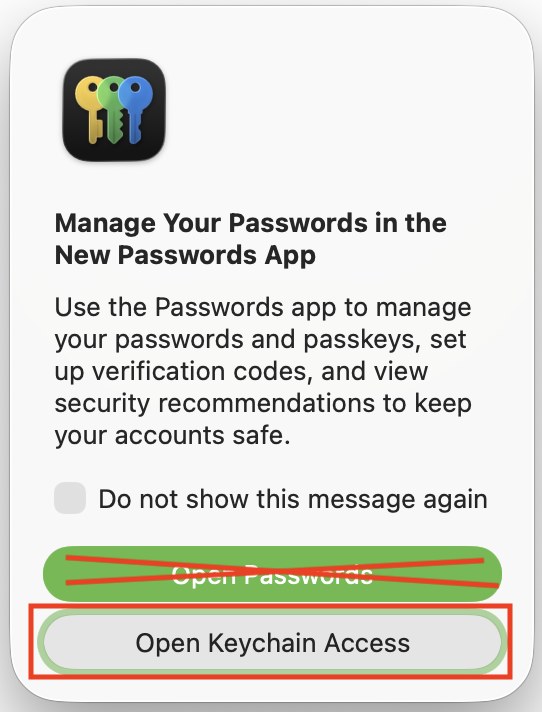
- Open the Keychain Access app on your Mac (located in Applications > Utilities, or searchable via Spotlight).
Note: If macOS prompts you to open the Passwords app or System Settings instead, choose Open Keychain Access.
- Click the search bar in the top-right corner of the Keychain Access window and search for:
com.iggsoftware.service.sync - Double-click the search result named com.iggsoftware.service.sync to open its details window.
- Check the box next to Show password.
- When prompted, enter your Mac administrator password (the same password you use to log in or unlock your Mac after restarting) and click Allow.
Your ledger encryption password will now be visible in the Show password field. You can copy this password and paste it into Banktivity to unlock your synced ledger.
If you need assistance opening apps or utilities on macOS, please refer to Apple’s guide on opening apps on Mac.