Finding Your Banktivity User Account Credentials in Keychain Access
When signing in to Banktivity, you may be prompted to enter your Banktivity User Account credentials. Your username and password are stored securely in macOS, allowing you to look them up using Keychain Access.
How to Retrieve Your Banktivity Username and Password
- Open the Keychain Access app on your Mac (located in Applications > Utilities, or searchable via Spotlight).
Note: If macOS prompts you to open the Passwords app or System Settings instead, choose Open Keychain Access.
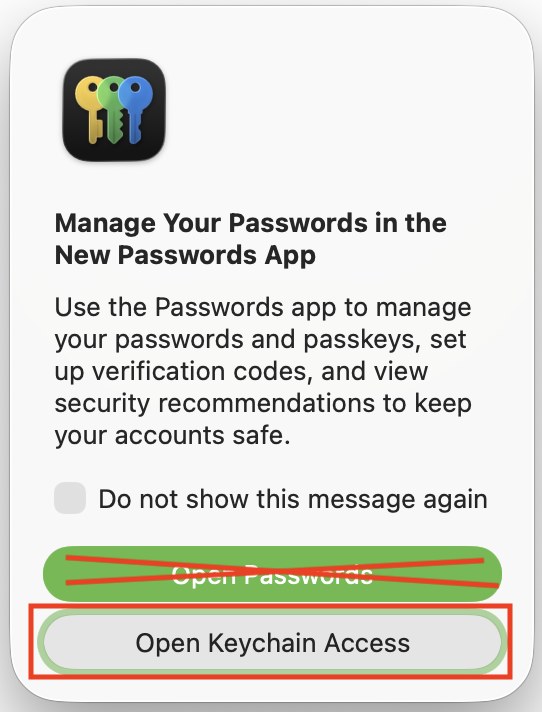
- Click the search bar in the top-right corner of the Keychain Access window and search for:
id.banktivity.com - Double-click the entry named id.banktivity.com to open its details window.
- Locate the Account field. This displays your Banktivity Username or login (which may or may not be your email address).
- To reveal the password, check the box next to Show password.
- When prompted, enter your Mac administrator password (the password you use to unlock your Mac after restarting) and click Allow.
Your Banktivity User Account password will now appear in the Show password field, ready to copy and paste into Banktivity.
Resetting Your Banktivity User Account Password
If you cannot recover your Banktivity User Account credentials from Keychain Access, you can reset your password online using the following steps:
- Go to the Banktivity ID manager (
https://id.banktivity.com/id). - Select Forgot your password?
- Enter the email address associated with your Banktivity User Account and click Send Instructions.
- Check your email inbox for a message from
no_reply@iggsoftware.comwith the subject "Banktivity ID Lost Password". - Open the message and click the Reset Password link inside.
Note: The password reset email will also display the primary Login / Username registered to your account. This may differ from your email address, so be sure to note it for future sign-ins.
Once you have finished updating your password, return to Banktivity or the web portal to log in with your updated credentials.
If you need assistance locating or opening utility apps on macOS, refer to Apple’s official guide on opening apps on Mac.